








Discord status and game card
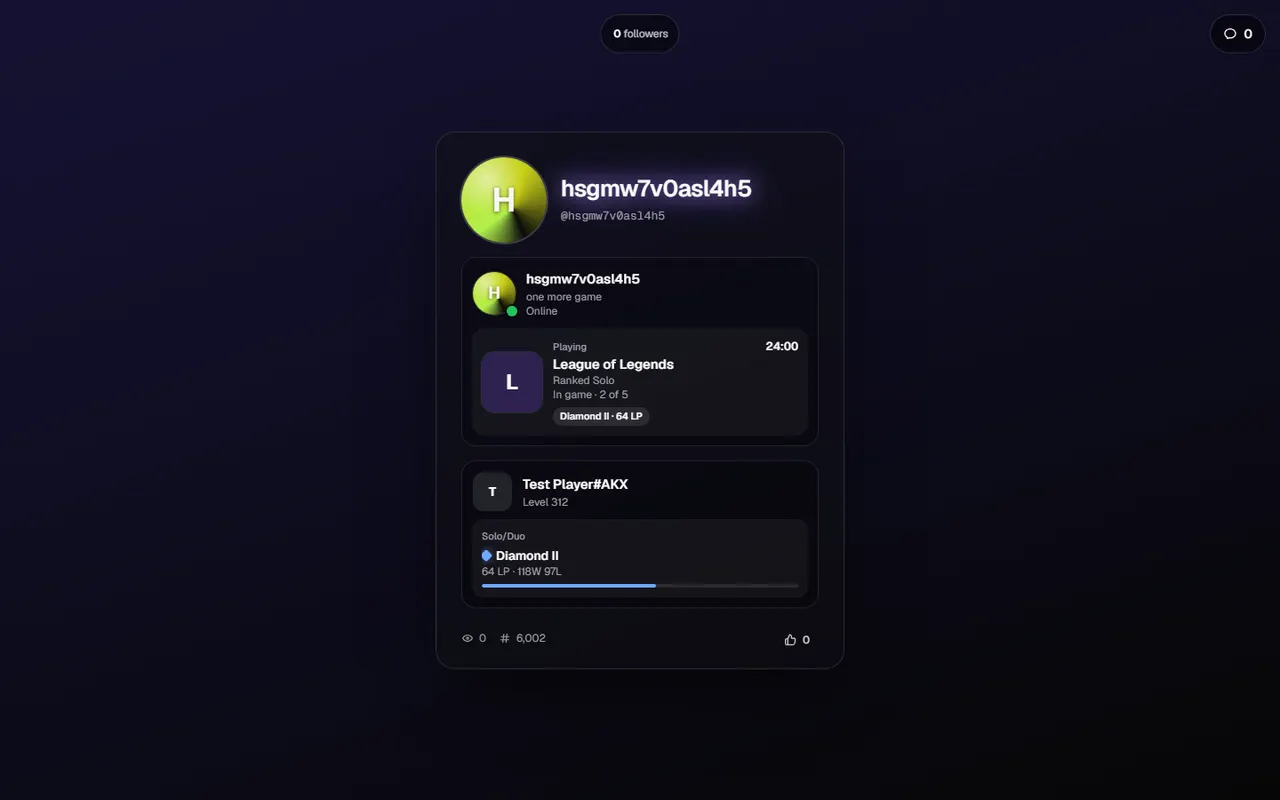
Show whether you are online, the game you are in with a live clock, and your League or TFT rank.
01Turn it on
- 1Connect Discord in Settings.
- 2Join our Discord server. Our bot only sees members.
- 3In Customize → Widgets, switch on Show my Discord status.
Games this week adds the hours you played each game over the last 7 days under your status, top three first. Our bot starts noting what you play only after you switch it on, and switching it off deletes everything it noted. It follows What it shows: hidden when the card shows music or status only.
02What visitors see
| You are | The card shows |
|---|---|
| Playing a game or using an app | Its picture, mode, map or score when the game shares them, your party size, and a clock that counts up live. |
| Listening on Spotify | The song, the artist and a bar that moves with the song. |
| Doing nothing | Online, idle, busy or offline, and your custom status. |
Your avatar decoration from Discord is shown too. Everything updates by itself every 30 seconds while the page is open.
Under What it shows you choose Everything, Games only, Music only or Only online status. Whatever you hide never reaches your page, not even in its code. With Everything, a song you play during a game shows under the game.
03League of Legends and TFT rank
- 1In Customize → Community & widgets → League and TFT, type your Riot ID, like Name#EUW.
- 2Pick your server and save.
Your page then shows your level and your Solo/Duo and TFT rank, with wins and losses. While you play League or TFT, the rank also shows on your game card.